
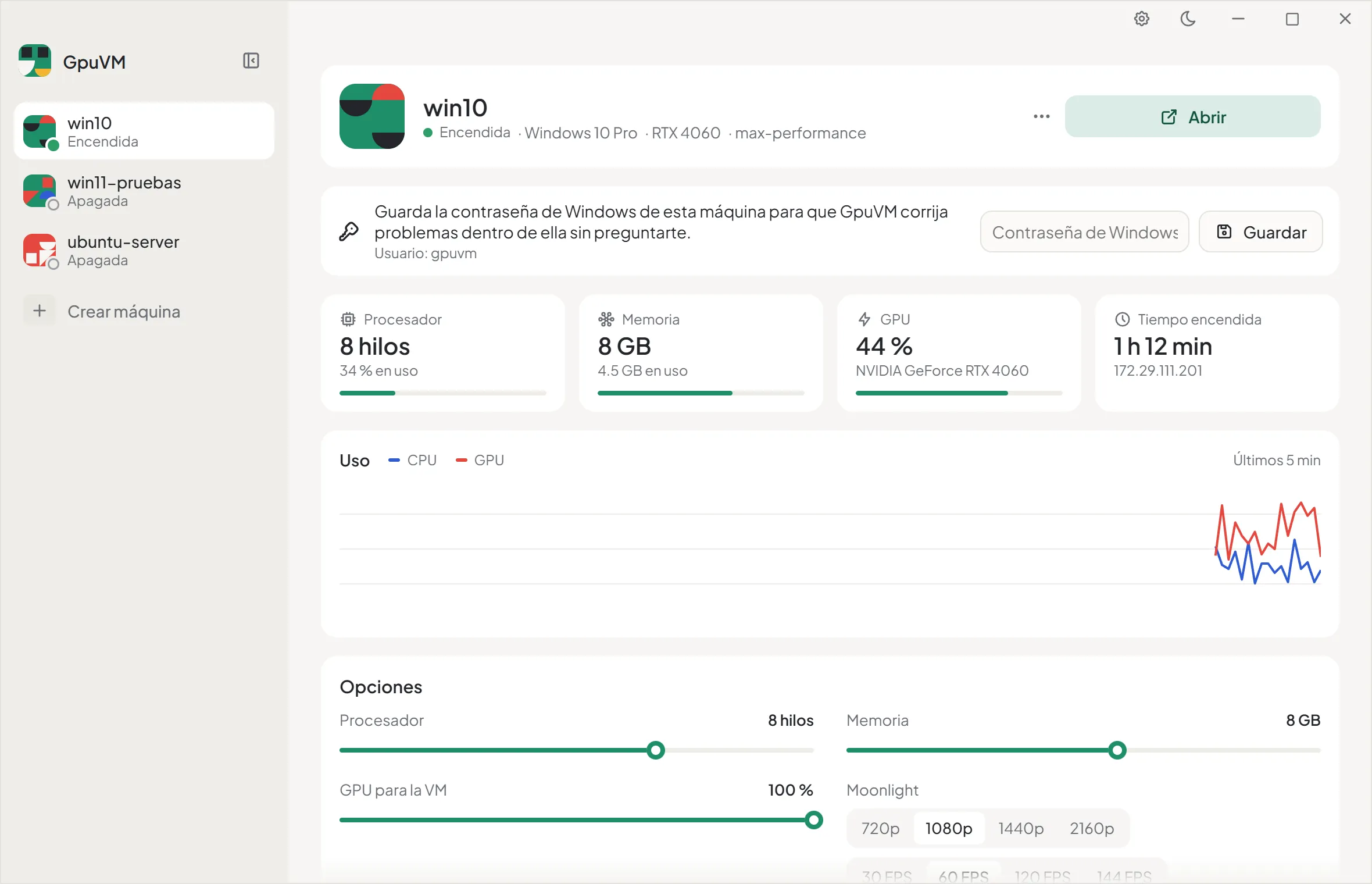
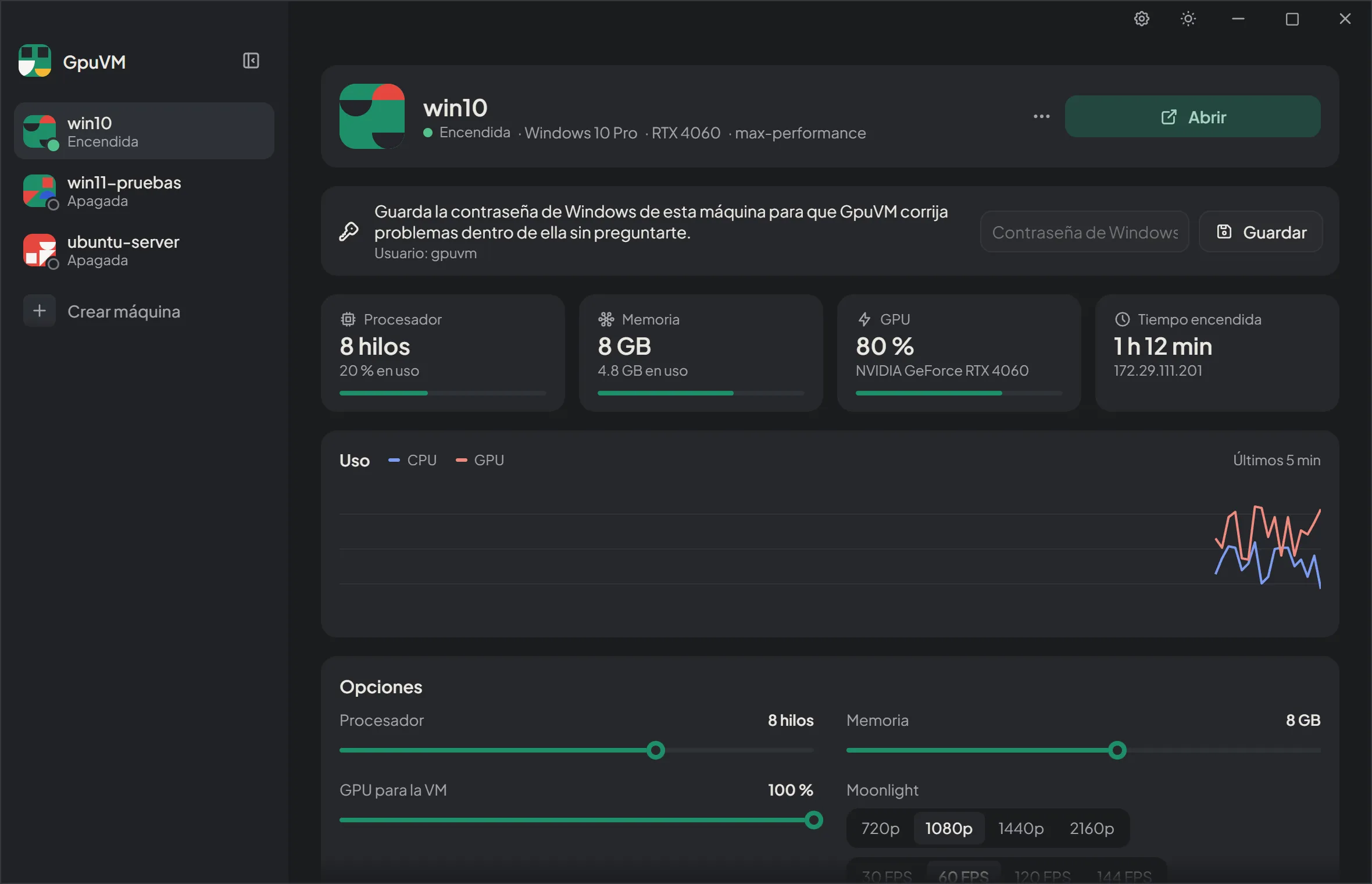
Desktop app
Tauri 2 + React. Every Hyper-V VM in one list, one-click start and open, live stats, options, a create wizard and power actions.
GpuVM creates Windows 10 and 11 virtual machines that use your PC’s GPU, with the best performance each backend allows, and a labs system to measure every improvement before adopting it.
A regular Hyper-V VM only gets a basic display adapter, so games and GPU apps don’t run well inside it. Hyper-V GPU partitioning (GPU-P) shares the host GPU with the VM, but setting it up by hand means copying driver files, tuning the VM and finding a way to actually see what the GPU draws, because the Hyper-V console only shows the basic Hyper-V display. GpuVM does all of that for you and keeps it working.
Create the VM. GpuVM checks the host, applies the Windows edition from your ISO straight to a VHDX (without going through the installer), copies the host GPU driver into the guest and leaves an unattended setup: local account, no OOBE screens, Remote Desktop enabled and autologon. The VM is Generation 2 with Secure Boot and TPM, so Windows 11 installs without tricks, and gets the profile’s CPU, fixed memory, MMIO space, no checkpoints and the GPU partition.
First boot. Inside the VM, the guest setup script applies the profile’s optimizations, installs the streaming components (Sunshine, a virtual display and VB-CABLE audio) and deletes unattend.xml, which holds the password. The VM then restarts once on its own.
Start and open. One click starts the VM, syncs the GPU driver if the host’s changed, waits for Windows and Sunshine, fixes the session and the display, pairs Moonlight automatically and opens the stream.
Use and measure. You use the VM in Moonlight on the host, with the image the GPU renders. The app shows live CPU, memory and GPU usage, and labs let you test changes with real measurements.
Desktop app
Tauri 2 + React. Every Hyper-V VM in one list, one-click start and open, live stats, options, a create wizard and power actions.
PowerShell module and CLI
The GpuVM module (PowerShell 7) does the work; gpuvm.ps1 exposes it as short commands.
Streaming
Sunshine inside the VM, a virtual display drawn by the GPU, VB-CABLE audio and Moonlight on the host.
Profiles and labs
JSON profiles with inheritance, and labs that compare a baseline against a candidate before a change is adopted.
The current backend is Hyper-V GPU-P: the GPU is shared between the host and the VM, and the guest uses the same driver as the host. New backends can be added; see Architecture.