
Using the app
The app’s interface is in Spanish. This page names each control by its label in the app, with its meaning in English.
The window
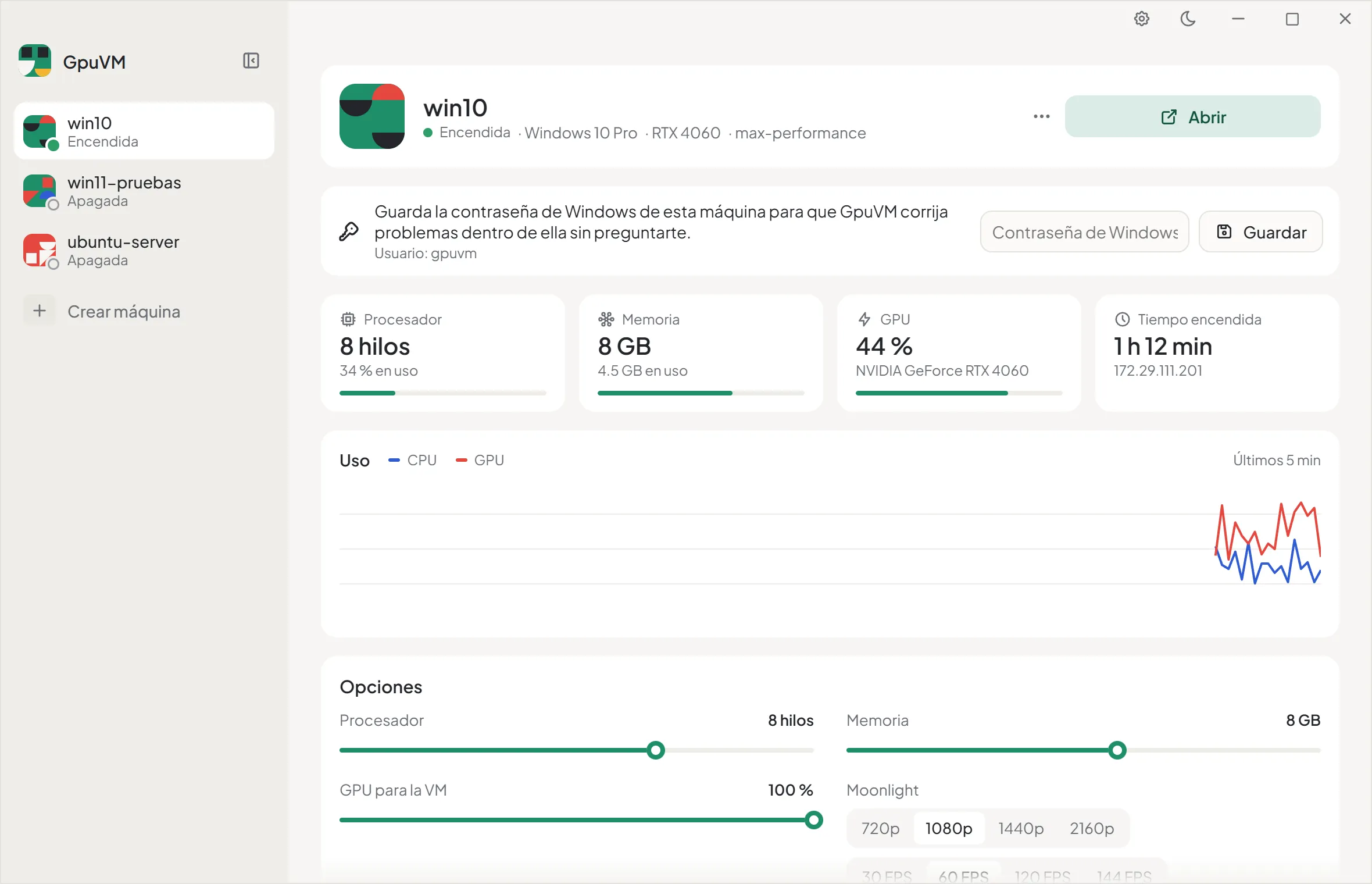
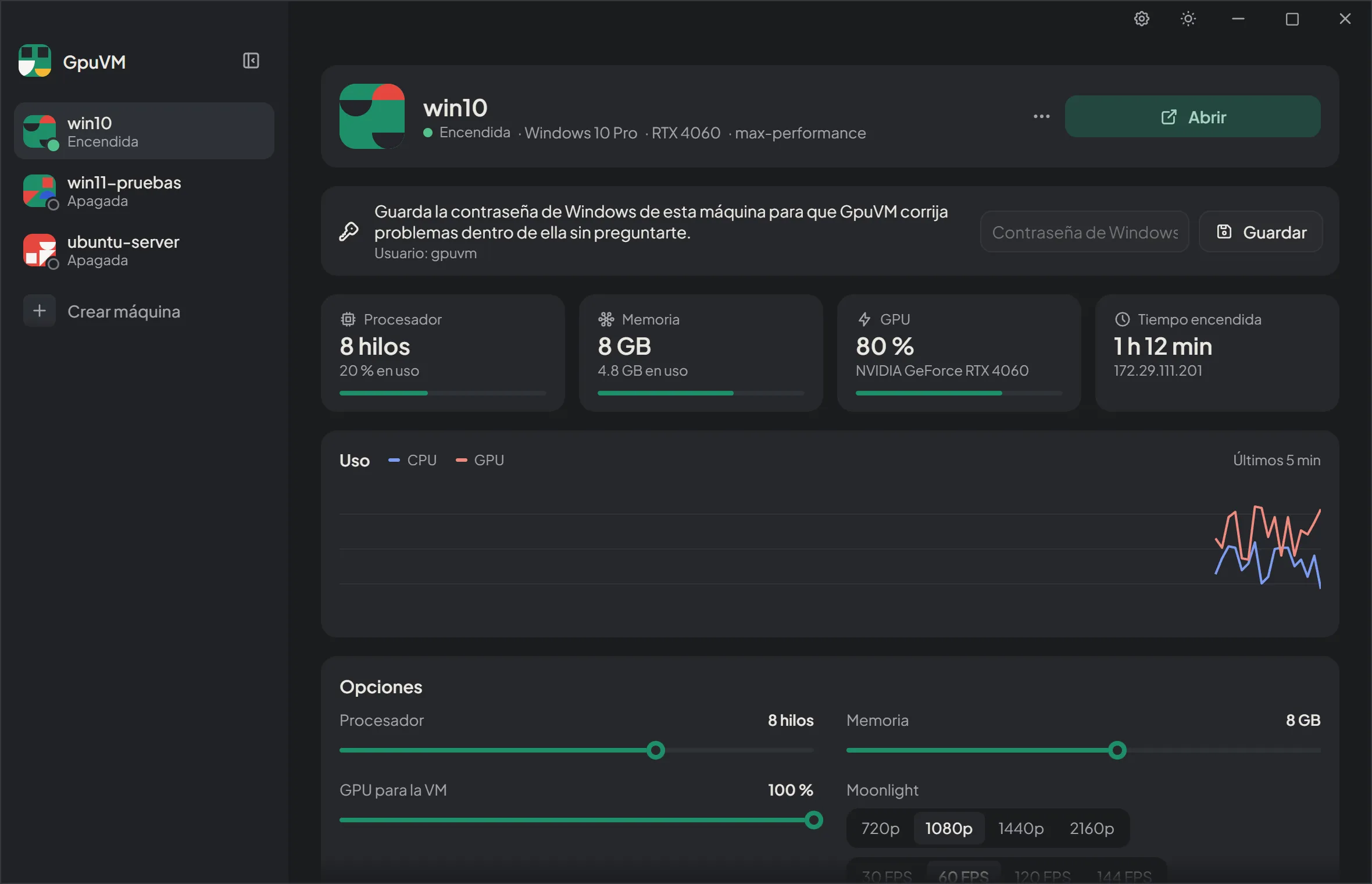
Section titled “The window”- Sidebar: every Hyper-V VM on the PC, created with GpuVM or not, with its state (or the current step of a running job). It can be collapsed. Crear máquina (Create machine) is at the end of the list.
- Main area: the selected VM: header with its state, edition, GPU and profile; notices; live stats; usage chart; and options.
- Biblioteca (Library) is the layers icon in the title bar: your profiles, disks and ISOs. See Library.
- Preferencias (Preferences) is the gear icon in the title bar, next to the light/dark toggle. See Preferences.
If the app isn’t running as administrator, it shows GpuVM necesita permisos de administrador with an Abrir como administrador (Open as administrator) button that reopens it elevated. If Hyper-V can’t be read, a notice shows the error with Reintentar (Retry).
Create a VM
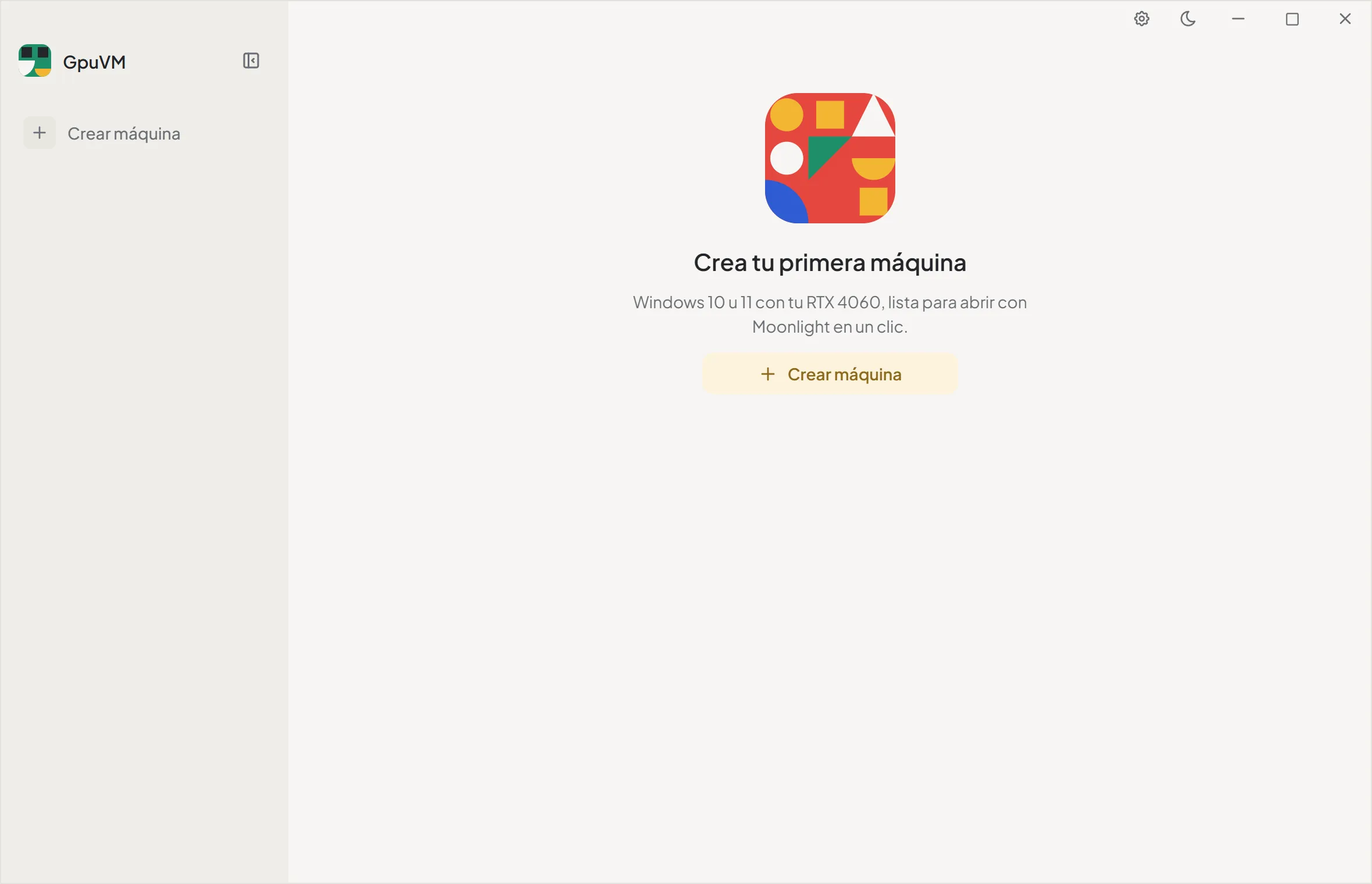
Section titled “Create a VM”With no VMs yet, the app invites you to create the first one.
-
Click Crear máquina.
-
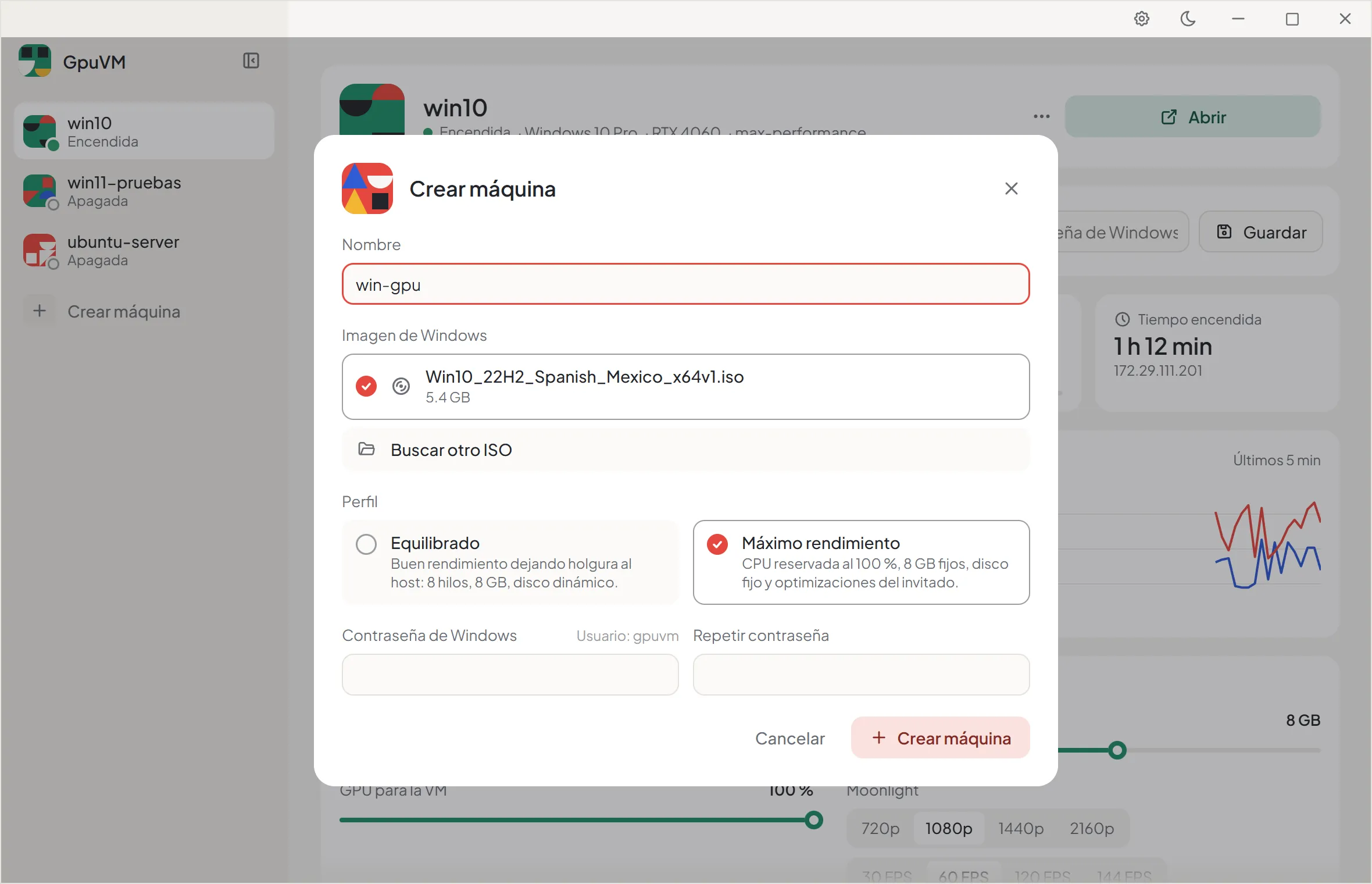
Fill in the form:
- Nombre (Name): letters, numbers,
_or hyphens, up to 40 characters, no spaces. It suggestswin-gpu. - Imagen de Windows (Windows image): the ISOs you already used or added first, then the ones found in your Downloads and Desktop folders, or Buscar otro ISO to browse for one.
- Perfil (Profile): Equilibrado (
balanced), Máximo rendimiento (max-performance, the default) or one of your own from the Library. The profile fills in the rest, including its ISO and apps. See Profiles. - Apps que se instalan (Apps to install): installed the first time the VM opens. See Apps.
- Contraseña de Windows (Windows password) for the local user
gpuvm, at least 6 characters, typed twice.
- Nombre (Name): letters, numbers,
-
Click Crear máquina. The dialog shows each step as it happens. You can close it: the progress stays in the sidebar, and if creation fails the dialog opens again with the error.
-
When it’s done the VM is selected and starts. Windows finishes setting itself up on its own in a few minutes.
Start and open
Section titled “Start and open”The main button changes with the VM’s state:
| State | Button | What it does |
|---|---|---|
| Off | Encender y abrir (Start and open) | Starts the VM and opens it in Moonlight. |
| Running | Abrir (Open) | Opens it in Moonlight. |
| Paused | Reanudar (Resume) | Resumes the VM. |
| Not created with GpuVM | Encender / Ver consola | Starts it / opens the Hyper-V console. |
Encender y abrir leaves everything ready on its own, and the button shows each step while it works:
- If the VM is off and the host’s GPU driver changed, it copies the new driver into the VM first (avoids a black screen or error code 43).
- Starts the VM and waits for Windows (the first time, Windows finishes its setup) and for Sunshine.
- Returns the Windows session to the GPU display if it was taken somewhere else.
- Makes Sunshine capture the virtual display.
- Sets the VM’s display to the Moonlight resolution and FPS.
- Pairs Moonlight with Sunshine if this PC isn’t paired yet.
- Opens Moonlight at the chosen resolution and FPS.
Warnings along the way (for example, audio not configured yet) appear as notifications.
Keyboard in the stream
Section titled “Keyboard in the stream”With Moonlight in fullscreen, Alt+F4, Alt+Tab and the Windows key go to the VM instead of closing Moonlight or taking you back to this PC. To quit the stream, press Ctrl+Alt+Shift+Q.
Paste into the VM
Section titled “Paste into the VM”While the VM is running, the clipboard button next to the ⋯ menu, Pegar en la VM (Paste into the VM), copies the text you copied on this PC to the VM’s clipboard, ready for Ctrl+V. It only goes from the PC to the VM: the VM never reads this PC’s clipboard. It needs the guest password.
Live stats
Section titled “Live stats”Four cards, refreshed every 2 seconds while a VM is on (every 6 seconds otherwise):
- Procesador (Processor): threads and % in use.
- Memoria (Memory): fixed memory and how much is in use.
- GPU: % in use while running, or the share assigned to the VM while off; below, the GPU name.
- Tiempo encendida (Uptime): time since start and the VM’s IP address.
The Uso (Usage) chart plots CPU and GPU over the last 5 minutes.
The Apps card installs Steam, Epic Games, Discord, Chrome, Brave, Proton VPN and Firefox in the VM: choose them and click Instalar (Install), or Encender e instalar (Start and install) if the VM is off. You can also choose them when creating the machine; they are installed the first time it opens. Each installer is downloaded inside the VM and only runs if Windows confirms it is signed by its publisher; pinned versions are also checked by SHA-256. The card needs the guest password.
Options
Section titled “Options”For VMs created with GpuVM:
- Procesador: threads, from 2 up to the host’s threads minus one.
- Memoria: GB, from 4 up to the host’s memory minus 4 GB.
- GPU para la VM (GPU for the VM): 10–100 %, in steps of 10.
- Disco (Disk): grows the disk (it can’t shrink). A fixed disk needs that much free space on the host. The VM’s C: drive grows on its own the next time it opens.
- Moonlight: resolution (720p, 1080p, 1440p, 2160p), FPS (30, 60, 120, 144) and Pantalla completa (Fullscreen) or Ventana (Window, the size of the chosen resolution).
- Captura (Capture): how Sunshine captures the screen.
- Estándar (Standard, the default): shows everything, including Windows’ administrator prompts, but programs in exclusive fullscreen look black.
- Pantalla completa exclusiva (Exclusive fullscreen): also shows programs in exclusive fullscreen at any resolution, but Windows’ administrator prompts are not shown in the stream. See Streaming.
- Red (Network):
- Solo internet (Internet only, the default): the VM reaches neither this PC nor your local network, except for what the stream needs. The rules live on the VM’s virtual switch port, outside the VM, so an infected VM can’t remove them.
- Internet y red local (Internet and local network): the VM reaches this PC and the rest of your network. Use it only when you need it, for example for a NAS.
Moonlight, capture and network settings are saved without stopping the VM: Moonlight’s apply the next time you open it, the capture right away if the VM is running (it restarts Sunshine), and the network right away. Processor, memory, GPU and disk need the VM off: if it’s running the button reads Apagar y aplicar (Shut down and apply), which validates, shuts the VM down, applies and starts it again. If it can’t start again (for example, not enough free memory), the previous settings are restored.
Guest password banner
Section titled “Guest password banner”If GpuVM doesn’t have the VM’s Windows password (for example, after rebuilding the VM’s state with repair), the VM shows a banner asking for it, for user gpuvm. It is saved encrypted with DPAPI and lets GpuVM fix things inside the VM through PowerShell Direct (without network and without asking you): waiting for setup to finish, moving the session back to the GPU display and setting the display resolution. VMs created from the app already have it.
Driver notice
Section titled “Driver notice”If the VM’s NVIDIA driver differs from the host’s, a notice says so. It updates on its own the next time you start the VM from the app, or right away with Actualizar ahora (Update now) or Apagar y actualizar (Shut down and update).
Power actions and more
Section titled “Power actions and more”The ⋯ menu has:
- Encender sin abrir (Start without opening).
- Apagar (Shut down, orderly), Forzar apagado (Turn off; click twice to confirm, unsaved work is lost), Reiniciar (Restart), Pausar / Reanudar (Pause / Resume).
- Ver consola de Hyper-V (Hyper-V console). It only shows the basic Hyper-V display, not what the GPU draws.
- Volver a emparejar Moonlight (Pair Moonlight again).
- Actualizar driver de la GPU (Update GPU driver), or Apagar y actualizar driver if it’s running.
- Otro patrón (Another pattern): changes the VM’s Bauhaus icon and color. Clicking the pattern next to the VM’s name (or a profile’s) does the same; the new one shows everywhere at once.
- Eliminar máquina (Delete machine): removes the VM from Hyper-V, keeping the
.vhdxdisk or deleting it too. It can’t be undone.
Library
Section titled “Library”Biblioteca (Library), the layers icon in the title bar, has three tabs:
- Perfiles (Profiles): the built-in profiles (marked Incluido, Built-in) and your own. Nuevo perfil (New profile) or Duplicar (Duplicate) starts one from another; yours can also be edited (Editar) and deleted (Eliminar, click again to confirm). Each keeps processor, memory, GPU share, disk size and type (Fijo / Dinámico, Fixed / Dynamic), Windows image, apps to install and how Moonlight opens (resolution, FPS, fullscreen or window), on top of the built-in profile it is Basado en (Based on). Crear máquina fills everything in from the chosen profile.
- Discos (Disks): the disks in the GpuVM folder, which VM uses each one (En uso, In use, or Libre, Free) and the free space on the PC. Crear máquina con este disco (Create machine with this disk) creates a VM again from a disk kept when its VM was deleted, with Windows and its apps as they were; free disks can be deleted (click again to confirm, it can’t be undone).
- ISOs: the Windows images you used, with the machines that used them, plus the ones in Downloads and Desktop. Agregar ISO (Add ISO) or Agregar a la lista (Add to the list) remembers one, and Quitar de la lista (Remove from the list) forgets it without deleting the file. Remembered ISOs are offered first in Crear máquina.
Preferences
Section titled “Preferences”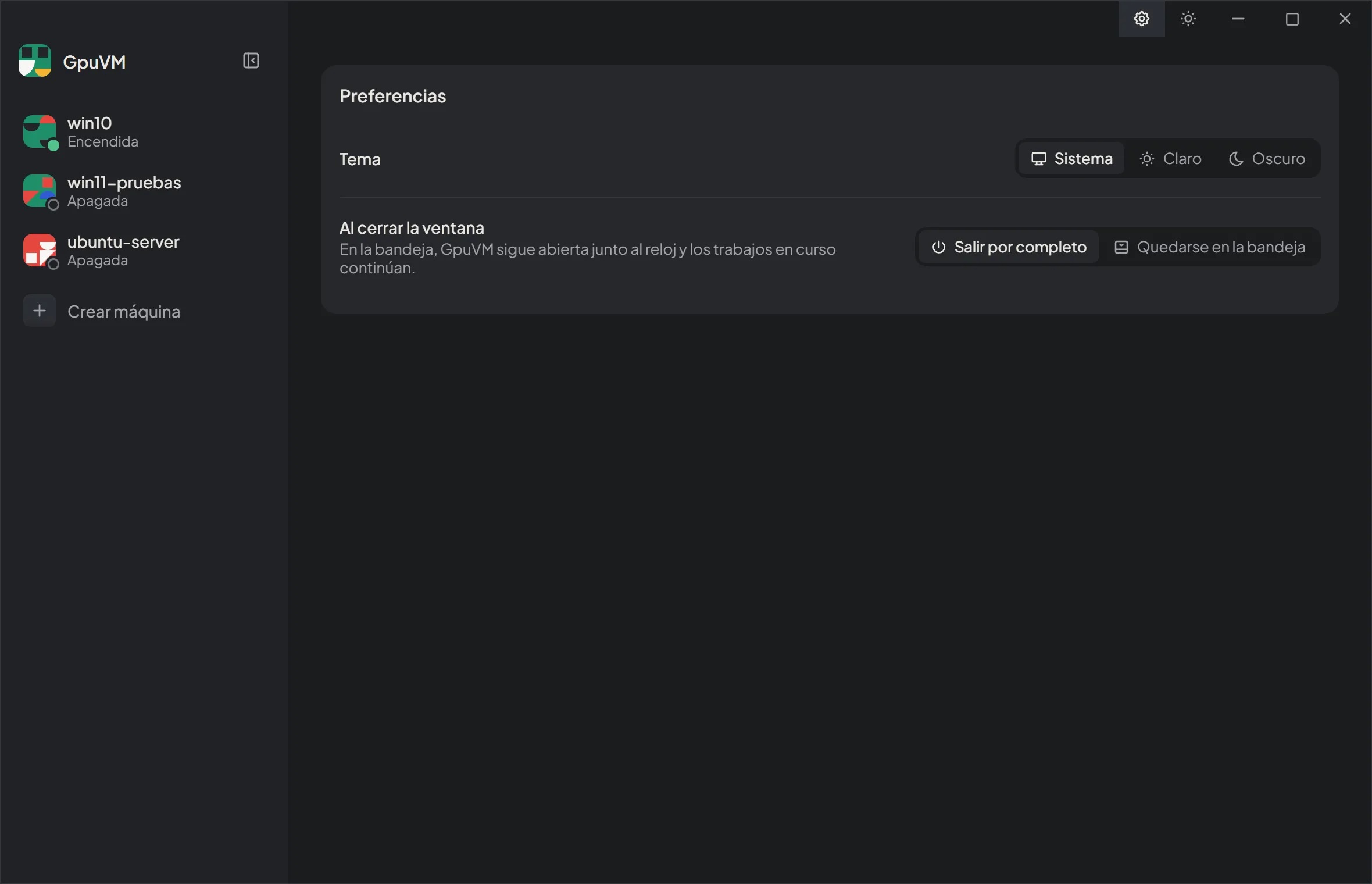
- Tema (Theme): Sistema (System, the default: follows Windows), Claro (Light) or Oscuro (Dark). The sun/moon button in the title bar switches between light and dark directly.
- Al cerrar la ventana (When closing the window):
- Salir por completo (Quit completely, the default): closing the window exits GpuVM.
- Quedarse en la bandeja (Stay in the tray): closing the window hides it and GpuVM keeps running next to the clock, so jobs in progress continue. The tray icon’s menu has Abrir GpuVM (Open GpuVM) and Salir (Quit); a left click on it opens the window again.
- Al salir de GpuVM (When quitting GpuVM):
- Dejarlas encendidas (Keep them running, the default): the machines keep running after GpuVM quits.
- Apagarlas (Shut them down): quitting GpuVM shuts down every running GpuVM machine cleanly, like the Start menu inside Windows, and frees its memory. GpuVM closes at once; the shutdown continues in the background.
GpuVM runs as a single instance: opening it again (for example from the Start menu while it’s in the tray) shows the window that is already open.