
Export
What you can export
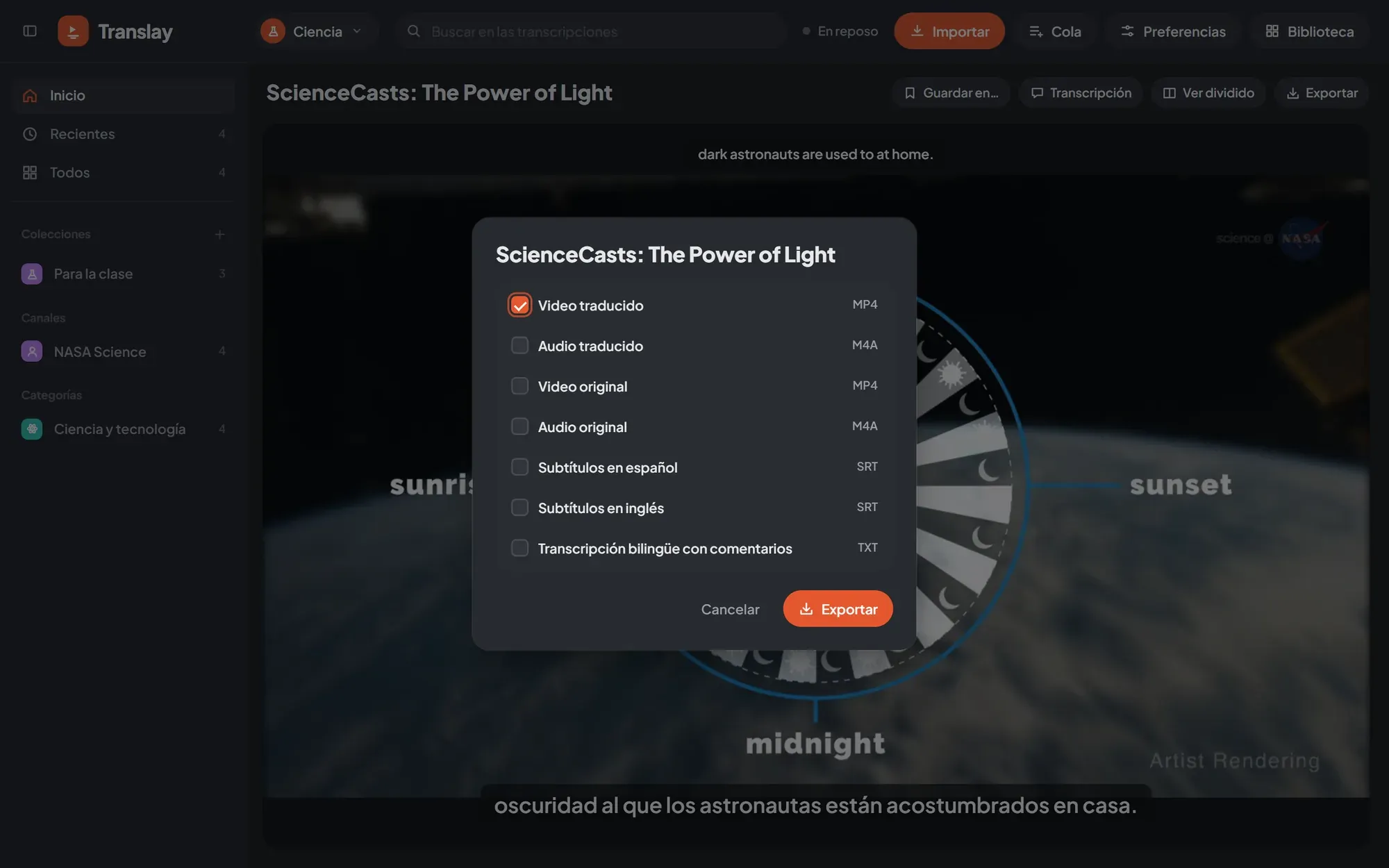
Section titled “What you can export”In the export dialog you check any combination of:
| Option | Format | Content |
|---|---|---|
| Video traducido (Translated video) | MP4 | The Spanish voice as the main track, English as a second track, and Spanish and English subtitles that you switch on in the player. |
| Audio traducido (Translated audio) | M4A | The Spanish mix. |
| Video original (Original video) | MP4 | The video as it was downloaded or imported. |
| Audio original (Original audio) | M4A | The original audio track. |
| Subtítulos en español (Spanish subtitles) | SRT | The translation, with its timings. |
| Subtítulos en inglés (English subtitles) | SRT | What is said in English. |
| Transcripción bilingüe con comentarios (Bilingual transcript with comments) | TXT | Each sentence with its time, the speaker (by name, if you set one), the English, the Spanish and the comments. |
The Spanish mix is the same one you hear in the player: each sentence dubbed at its moment and the original in the background, at the level set in Preferences › Audio y subtítulos › Original bajo la voz en español (Original under the Spanish voice). Where nobody speaks, the original stays at normal volume. It is built with ffmpeg on the CPU, so it doesn’t take GPU away from processing.
From where
Section titled “From where”- Player: Exportar (Export) in the video bar, for the open video.
- Card: the download icon, or Exportar… in its context menu.
- Collection or playlist: Exportar in its header, or Exportar todo… (Export all…) in the context menu.
- Selection: Exportar with several videos selected.
- Home: Exportar next to the featured video.
One file or a .zip
Section titled “One file or a .zip”If the result is a single file, it downloads as is, with the video title in the name. If there are several (several videos or several types), they come together in a .zip.
Progress shows in the Cola panel, in the Exportar section, and the download starts on its own when it finishes in the tab that requested it. If you closed it, the file stays in the panel with Descargar (Download) as long as the server keeps running. On startup, the server deletes exports older than a day.
If the video isn’t ready yet
Section titled “If the video isn’t ready yet”The dialog tells you before exporting what it will have to wait for:
- Translated content (video or audio) waits for dubbing to finish. If the video wasn’t in the queue, it is added automatically; meanwhile the panel shows how far dubbing has got.
- Subtitles and the TXT only wait for the full transcription, not dubbing.
- A video that hasn’t been downloaded is downloaded first.
- A video of which only the audio was downloaded: if you ask for a video (original or translated), the full video is downloaded first.
You can cancel an export in progress from the Queue panel with Cancelar (Cancel).