
Player
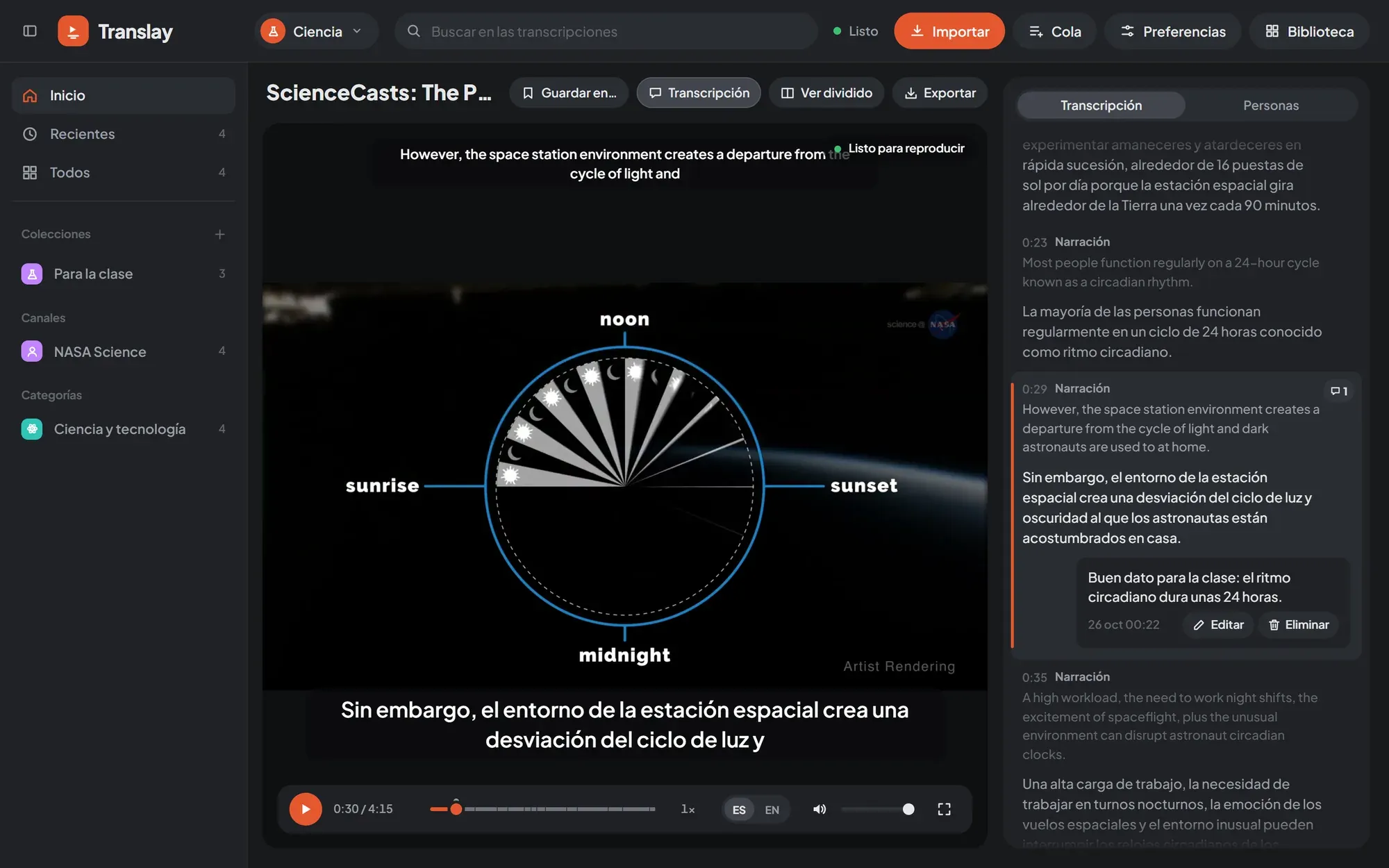
Above the video are its title and its actions: «Guardar en…» (Save to…), «Transcripción» (Transcript; shows or hides the side panel), «Ver dividido» (Split view) and «Exportar» (Export). The «Biblioteca» (Library) button in the header goes back to the library; from there, «Volver al video» (Back to the video) returns.
Expanded and split view
Section titled “Expanded and split view”- Ampliada (Expanded) (default): a single large video, with the Spanish subtitle at the bottom and the English one small at the top, and the transcript on the side.
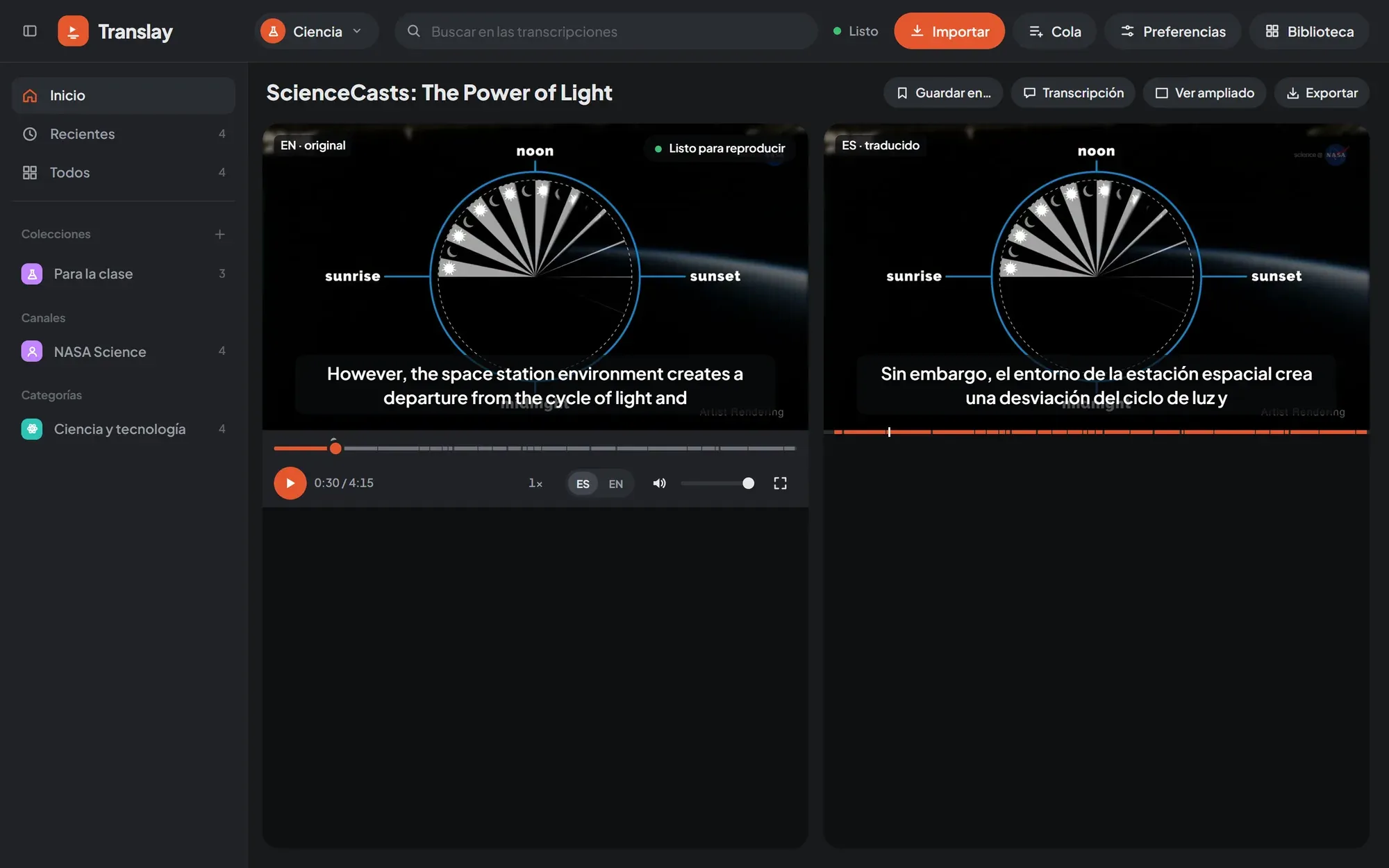
- Dividida (Split): the original («EN · original») and the translated one («ES · traducido») side by side. Under the Spanish video, a line marks the sentences already translated.
The «Ver dividido» or «Ver ampliado» (Expanded view) button switches between the two and your choice is saved (Preferencias › Reproducción › «Vista del video»; Preferences › Playback › “Video view”). The subtitles of each language can be turned off in Preferencias › Audio y subtítulos (Audio and subtitles).
Controls
Section titled “Controls”The controls are custom and hide by themselves after a few seconds while the video plays; they come back when you move the mouse or press a key.
- Play or pause, also with a click on the video.
- Time elapsed and total.
- Progress line: besides what has been played, a faint band marks what has already been recognized and a stronger one what already has Spanish voice (or translation, if the app runs without voice). Hovering shows the time; the little dots are comments.
- Speed: each click moves to the next value between 0.75× and 2× (in steps of 0.25). The Spanish voice speeds up without changing pitch. The chosen speed is remembered in the browser.
- ES / EN: ES is the Spanish voice with the original in the background; EN is the original at normal volume. Which language each video starts with and how loud the original stays under the voice is chosen in Preferencias › Audio y subtítulos.
- Volume and mute.
- Full screen, also with a double click on the video.
Keyboard shortcuts
Section titled “Keyboard shortcuts”They work in the player, outside text fields.
| Key | Action |
|---|---|
| Space or K | Play or pause |
| ← / → | 5 seconds back or forward |
| F | Full screen |
| M | Mute or unmute |
| Shift + < / > | Decrease or increase speed |
In the library, / takes you to the search field (see Glossary and search).
When it’s ready
Section titled “When it’s ready”A video is processed while you watch it: the server starts from your playback point and, if you jump to an unfinished part, it jumps with you. To know whether it’s worth pressing play, an indicator appears over the video:
- «Preparando NN %» (Preparing NN%): how much is left to have enough margin.
- «Listo para reproducir» (Ready to play): what is already dubbed ahead is enough to listen without interruptions.
- «Cargando modelos» (Loading models): the models are coming back from idle mode.
The indicator compares what is already dubbed ahead of the playback point with the actual processing speed. By default it shows while paused and, while playing, only if the margin runs short; Preferencias › Reproducción › «Indicador de reproducción» (Playback indicator) lets you show it always or never.
Autoplay
Section titled “Autoplay”With Preferencias › Reproducción › «Reproducir al abrir un video» (Play when opening a video), the video starts by itself as soon as it is ready to be heard without interruptions.
With «Pausar hasta que esté listo» (Pause until ready), if you reach a part that doesn’t have Spanish voice yet (because of a jump, or because the dubbing fell behind), the video pauses, the indicator says «Sigue al estar listo NN %» (Continues when ready NN%) and it resumes by itself. If you press play by hand beforehand, it continues anyway, without waiting, until the next jump. This pause only applies when listening in Spanish.
Up next
Section titled “Up next”When you open a video from a collection, a playlist or a home page row, the «Siguientes» (Up next) tab, next to «Transcripción», shows that list with the current video marked. With «Abrir» on a selection, it shows the selected ones.
When a video ends, the next one in the list follows (Preferencias › Reproducción › «Reproducir el siguiente al terminar», Play the next one when finished). If the next one isn’t downloaded yet, it is downloaded with priority and opens when it finishes. The tab only appears when the list has more than one video.
Floating thumbnail
Section titled “Floating thumbnail”If you go to the library, the Cola (Queue) or Preferencias while the video is playing, it continues in a thumbnail at the bottom right, with «Volver al video» and «Cerrar» (Close). If you leave it paused, it isn’t shown: the video stays saved until you return.