
Import
Everything you import goes straight to the server’s queue: it appears instantly in the library, dimmed and with its status, and keeps downloading and processing even if you reload or close the page.
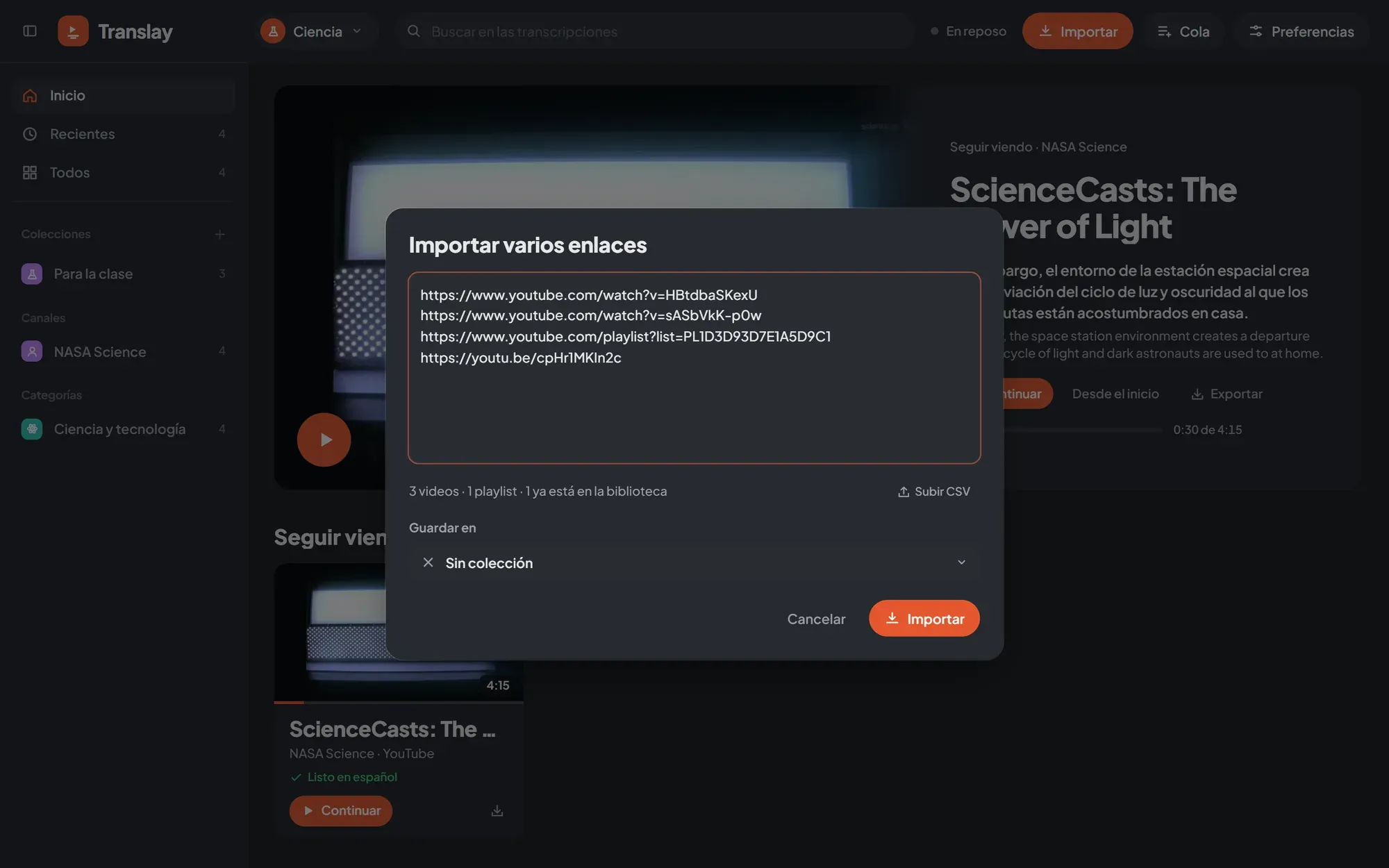
YouTube links
Section titled “YouTube links”The «Importar» (Import) button in the header opens a field to paste links and the «Archivos» (Files) button. «Importar» becomes active when the field has a valid link: a video (watch?v=, youtu.be/, shorts/, live/), a playlist or an 11-character id.
You can also paste a link anywhere on the page, outside a text field, or open the app with ?yt=<link or id> in the address.
Outside the player, an imported video doesn’t open: it enters the queue and appears in Recientes (Recent). When you want to watch it, open it from its card.
Dropbox links
Section titled “Dropbox links”A Dropbox shared link to a video or audio file is imported like a YouTube video: it enters the queue, downloads with its progress on the card and the card says «Dropbox». It works with a single file (dropbox.com/scl/fi/…/clase.mp4) and with a file inside a shared folder (dropbox.com/scl/fo/…/21_10.mp4); a link to the whole folder is rejected, because Dropbox would hand over a zip. The link has to be public («Anyone with the link»).
Translay changes dl=0 to dl=1 to get the file directly and drops the tracking parameters (st, e), so the same link pasted twice is the same video. The file is stored in the library’s library/ folder, next to its audio track and a thumbnail taken from the video. With «Solo el audio» (Audio only) the whole file is still downloaded (Dropbox can’t send just the audio) but only the audio is kept.
Videos already in Spanish
Section titled “Videos already in Spanish”If the video is already in Spanish, open the arrow next to «Importar» and choose «Está en español: solo transcribir» (It’s in Spanish: transcribe only). It applies to what you’re importing right now (YouTube or Dropbox, one link or several). The video is transcribed in Spanish and that’s it: no translation, no Spanish voice, it plays with the original audio and a single subtitle, the transcript shows one column and the card says «Transcrito» (Transcribed) when it’s done.
To change it later, use «Idioma del video» (Video language) in the video’s context menu: «Inglés: traducir y doblar» (English: translate and dub) or «Español: solo transcribir» (Spanish: transcribe only). What was already transcribed in the other language is deleted and the video is processed again, so it asks first.
Several links
Section titled “Several links”If you paste text with more than one link, the «Importar varios enlaces» dialog opens so you can review them first. It takes YouTube and Dropbox links from anywhere in the text (one per line, separated by commas, or mixed with other text) and shows a summary: how many videos, how many playlists and how many are already in the library. Duplicates count only once.
In «Guardar en» (Save to) you choose one of your collections or a category for what you import; all YouTube categories appear even if you don’t have videos in them yet.
With thousands of links, videos appear right away with their id and titles are filled in gradually, with few requests at a time so it doesn’t look like a burst to YouTube.
Playlists
Section titled “Playlists”A playlist link (list=…) is imported as a collection, marked «Playlist», and all its videos enter the queue in order. Pasting it again updates it.
If the link is for a video inside a playlist, Translay asks «Este enlace es de una playlist» (This link is from a playlist) with two options: «Solo este video» (Only this video) or «Agregar playlist» (Add playlist). While you are watching a video it doesn’t ask: only that video is imported.
YouTube’s automatic mixes (lists that start with RD or UL) have no end, so they are treated as a single video.
From a CSV
Section titled “From a CSV”«Archivos» accepts a .csv, and you can also drag it onto the page or use «Subir CSV» (Upload CSV) inside the several-links dialog. Translay takes:
- YouTube and Dropbox links from any column.
- Loose 11-character ids from a column named
id,video_id,youtube_idoryt_id.
The separator can be a comma, semicolon or tab. The links found open in the several-links dialog so you can review them before importing.
Files from your machine
Section titled “Files from your machine”«Archivos» (or dragging onto the page) accepts videos and audio files. Each file is copied to the open library’s library/ folder, with a thumbnail taken from the video, and enters the queue. It is recognized by a fingerprint of its content, so renaming it doesn’t duplicate it.
Import into a collection
Section titled “Import into a collection”In a custom collection or a category, the «Importar» button in its header (or «Importar aquí…» (Import here…) in the context menu) opens the several-links dialog with that collection already chosen in «Guardar en». If the collection is empty, the button appears in the center.
A video imported into a category appears in it even if YouTube has it in another.
Download only or translate
Section titled “Download only or translate”Preferencias › Importar y descargas › «Al importar» (Preferences › Import and downloads › “On import”) decides what is done with new items:
- Descargar y traducir (Download and translate) (default): it is downloaded, translated and dubbed.
- Solo descargar (Download only): it is downloaded without using the GPU and stays «Descargado, sin traducir» (Downloaded, not translated). Useful for watching or exporting the original. When you want to translate it, use «Procesar» (Process) on its card or in the Cola; opening it to watch also processes it.
On a YouTube or Dropbox video not yet downloaded, «Ver ▾» › «Descargar sin abrir» (Watch ▾ › Download without opening) downloads it with priority without opening or translating it.
Audio only
Section titled “Audio only”Preferencias › Importar y descargas › «Qué descargar» › «Solo el audio (más rápido)» (What to download › Audio only (faster)) downloads only the audio track. It is translated and dubbed all the same; the player shows the thumbnail instead of the picture and the card carries the «Solo audio» (Audio only) label.
To get the picture afterward, use «Bajar video» (Download video) on the card (or in the selection): the full video is downloaded without translating again. If you export a video, original or translated, the full video is downloaded first.
These two preferences are specific to each library.
While you watch a video
Section titled “While you watch a video”The «Importar» button remains available in the player. What happens with what you import is decided by Preferencias › Reproducción › «Al agregar un video mientras ves otro» (Preferences › Playback › “When adding a video while watching another”):
| Option | What it does |
|---|---|
| Ponerlo a continuación (Put it next) (default) | It enters the queue and sits right after the current one in «Siguientes» (Up next). |
| Procesarlo en segundo plano (Process it in the background) | It only enters the queue. |
| Abrirlo (Open it) | It is downloaded with priority and opens as soon as it finishes. With files from your machine, the first one opens and the rest stay in «Siguientes». |