
Libraries
A library is a folder with everything that belongs to it, like Obsidian vaults. You can have one for documentaries and another for talks, each on a different disk if you want, and switch between them from the header.
What each one stores
Section titled “What each one stores”Inside a library’s folder:
| File or folder | Contents |
|---|---|
vault.json |
Name, color, icon, pattern, access and its own preferences. |
library.json |
Videos, collections and playlists. |
glossary.json |
Its glossary. |
transcripts/ |
Transcripts, translations, people and comments for each video. |
youtube/ and library/ |
What was downloaded from YouTube and the imported files. |
audio/ and voices/ |
The Spanish voice of each sentence and each person’s reference voices. |
people/ |
People saved so their voice can be used in other videos (see People). |
Three preferences are also specific to each library: Modo (Mode: light, dark or follow the system), Al importar (On import) and Qué descargar (What to download). A new library starts with the values of the one that was open. When you have more than one library, the Preferencias (Preferences) sections that include them say so with «Se guarda en» (Saved in) and the name of the open library.
Everything else is shared by all and lives in data/: the queue, the YouTube session (cookies.txt), the general preferences and the list of libraries (data/libraries.json). The details are in Data on disk.
Principal
Section titled “Principal”The Principal library is the data/ folder itself, where everything was before libraries existed. It can’t be removed or deleted.
Switch and create
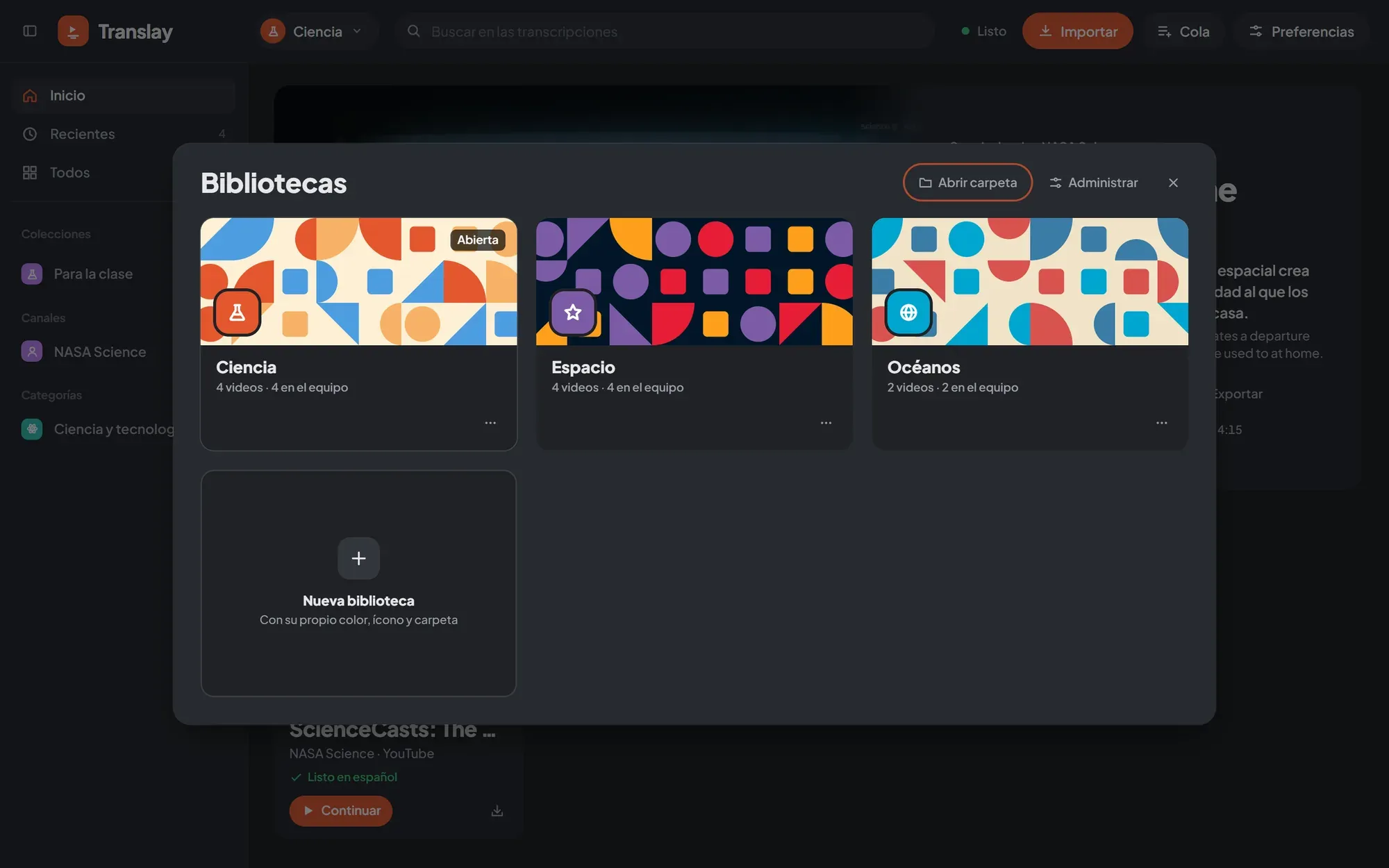
Section titled “Switch and create”The button with the library’s name, next to the logo, opens the list with each library’s number of videos and a pencil to edit it. Below are «Nueva biblioteca» (New library) and «Ver todas» (See all). When you switch libraries, the view returns to its home.
The new library dialog asks for:
- Nombre (Name).
- Color, among eight.
- Ícono (Icon), among eighteen (Ciencia, Humor, Música, Viajes…).
- Dónde se guarda (Where it is stored): «En la carpeta de la app» (In the app’s folder,
data/libraries/<id>) or «En otra carpeta» (In another folder). With «Elegir» (Choose) the Windows folder dialog opens on the machine where the server runs; you can also type the full path (for exampleD:\Videos\Ciencia).
At the top you see a preview of the banner. «Al azar» (Random) picks color, icon and pattern at once, and a name too if the library is new.
Color, icon and pattern
Section titled “Color, icon and pattern”Each library has a banner with its geometric pattern, using its color as the main one, and a badge with its icon. «Otro patrón» (Another pattern), in the dialog or in its card’s menu, changes the pattern and stores it on the server, so it looks the same in every browser.
With Preferencias › Apariencia › «Color de cada biblioteca» (Preferences › Appearance › “Color of each library”), buttons, progress and playback use the open library’s color instead of the theme color.
The «Bibliotecas» screen
Section titled “The «Bibliotecas» screen”«Ver todas» opens a screen with one card per library: banner, icon, name, number of videos («12 videos · 9 en el equipo», 12 videos · 9 on this machine) and whether it is public or password-protected. One click opens the library. The «Más» (More) button (or right-click) offers:
- Abrir (Open) and Editar… (Edit…)
- Otro patrón.
- Quitar de la lista (Remove from the list): the library stops appearing, but its videos and files stay in its folder. You can open it again with «Abrir carpeta» (Open folder).
- Vaciar… (Empty…): sends all its videos and collections to the trash. It asks you to type the library’s name.
- Eliminar (Delete): sends the entire library (only what belongs to it: the files and folders in the table above) to Principal’s trash, from where it can be restored for 30 days. It also asks you to type its name.
In the header are «Abrir carpeta», to add a folder that is already a library (from an external drive or another machine), and «Administrar» (Manage), which leads to Preferencias › Bibliotecas, where you can also see each one’s path.
Move videos
Section titled “Move videos”A video lives in a single library. To move it to another, select it and use «Mover a…», or choose «Mover a» in its context menu. Its transcript, voices and files move with it. Those being downloaded or processed at that moment are skipped; move them when they finish.
If you import a link that is already in another library, it isn’t duplicated: it stays where it was and a notice tells you which one. The same happens when you use «Abrir carpeta» on a library that contains videos already present in another.
Queue and libraries
Section titled “Queue and libraries”The queue is a single one for all libraries (one GPU, one order), but the «Cola» (Queue) panel and its number show only what belongs to the open library. On the Cola screen you can choose another library or «Todas» (All); when you open a video from another library from there, Translay switches to that library first. See Queue.
Direct link
Section titled “Direct link”Each library has its own address: http://127.0.0.1:8765/b/<id> opens the app directly on it. For anyone connecting from another machine as a guest, it is the only library they see. The link to share appears in Preferencias › Acceso y API (Access and API) when the library is public or password-protected. See Access.