
Glossary and search
Glossary
Section titled “Glossary”The glossary is in Preferences › Glosario (Glossary). Each row is a term in English and, on the right, how it is always translated:
| In English | Translation | Result |
|---|---|---|
Jupyter Notebook |
(empty) | Stays in English. Useful for names, brands and acronyms. |
prompt |
instrucción |
Always translated as “instrucción”. |
Agregar término (Add term) adds a row, Quitar (Remove) deletes it and Guardar glosario (Save glossary) applies it. Each library has its own glossary.
Terms are matched as whole words and ignoring case: prompt does not change inside “prompts” or “prompt-based”. If a term is inside a longer one (“Notebook” and “Jupyter Notebook”), the longer one is used. Before translating, each term is swapped for a placeholder that the translator leaves untouched and then restored with its fixed translation (vt/glossary.py).
What happens when you save it
Section titled “What happens when you save it”The glossary is applied to what is already translated, not only to new content. When you save it, the sentences in the library that contain an added, changed or removed term are translated again, and the voice for those sentences is redone in the queue. When it finishes, a notice says how many sentences and videos changed.
Searching transcripts
Section titled “Searching transcripts”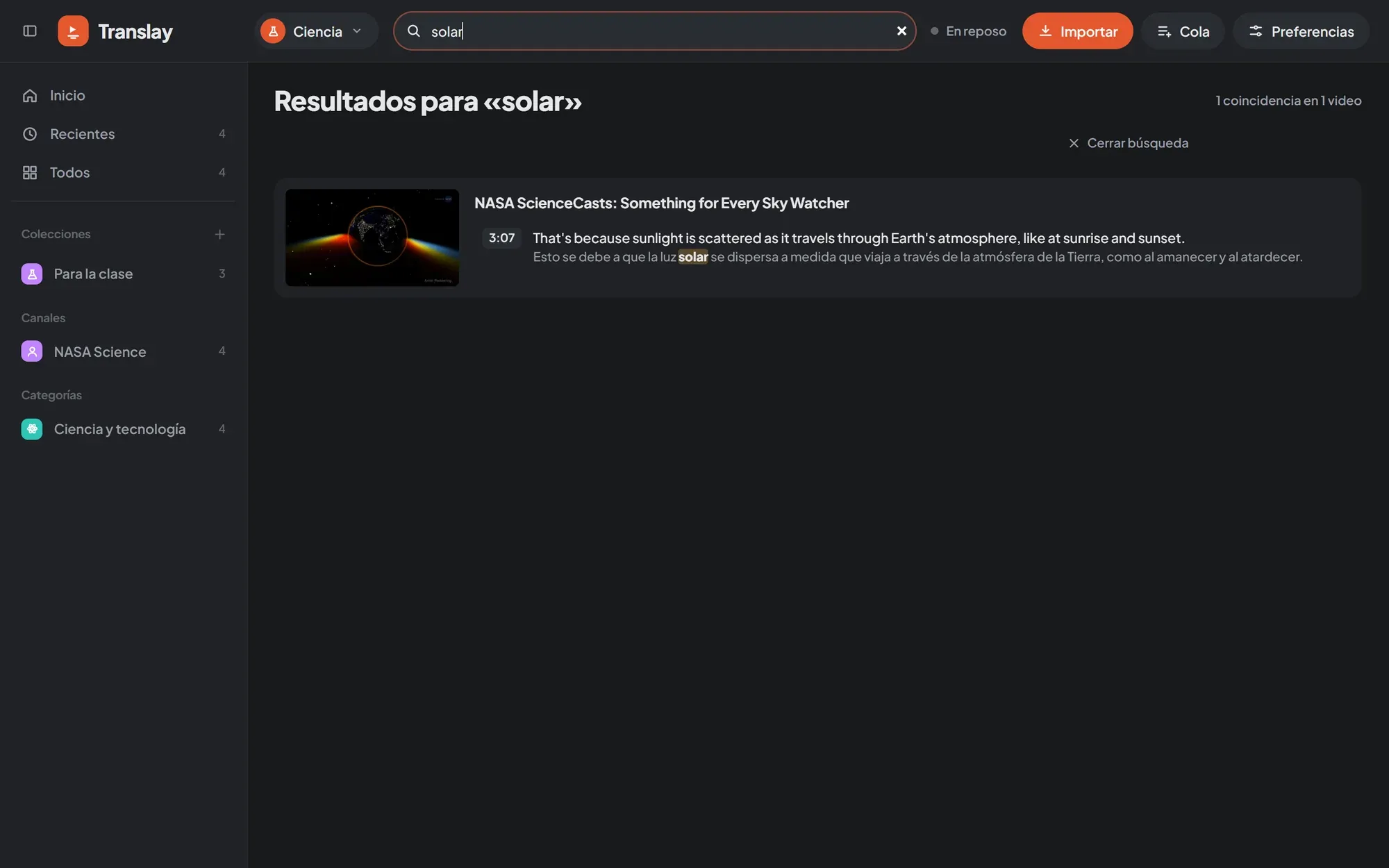
The Buscar en las transcripciones (Search transcripts) field in the header searches all the videos in the open library: in the English, in the Spanish and in the comments. In the library, the / key takes you straight to the field; from another screen, tapping it takes you back to the library.
- Accents and case don’t matter: “cancion” finds “canción”.
- It searches as you type, from two letters on.
- Results are grouped by video, with the one that has the most matches first, and the match is underlined.
- Each result shows the time of the sentence; one click opens the video just before that moment.
Esc or Cerrar búsqueda (Close search) goes back to the collection you were in.