
Library
The library is the screen Translay opens with. On the left is the sidebar with the collections; on the right, the home page or the selected collection.
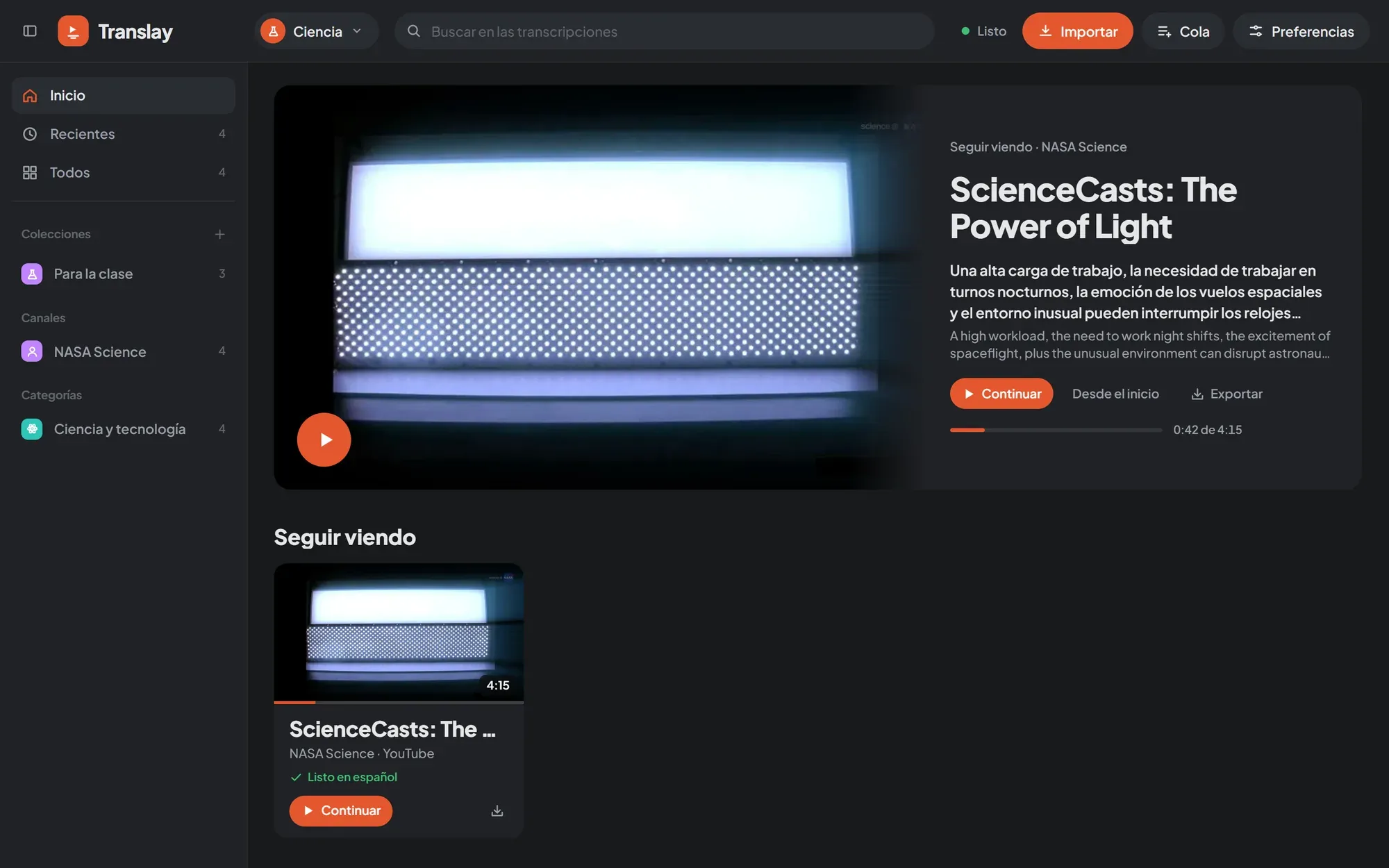
Home page
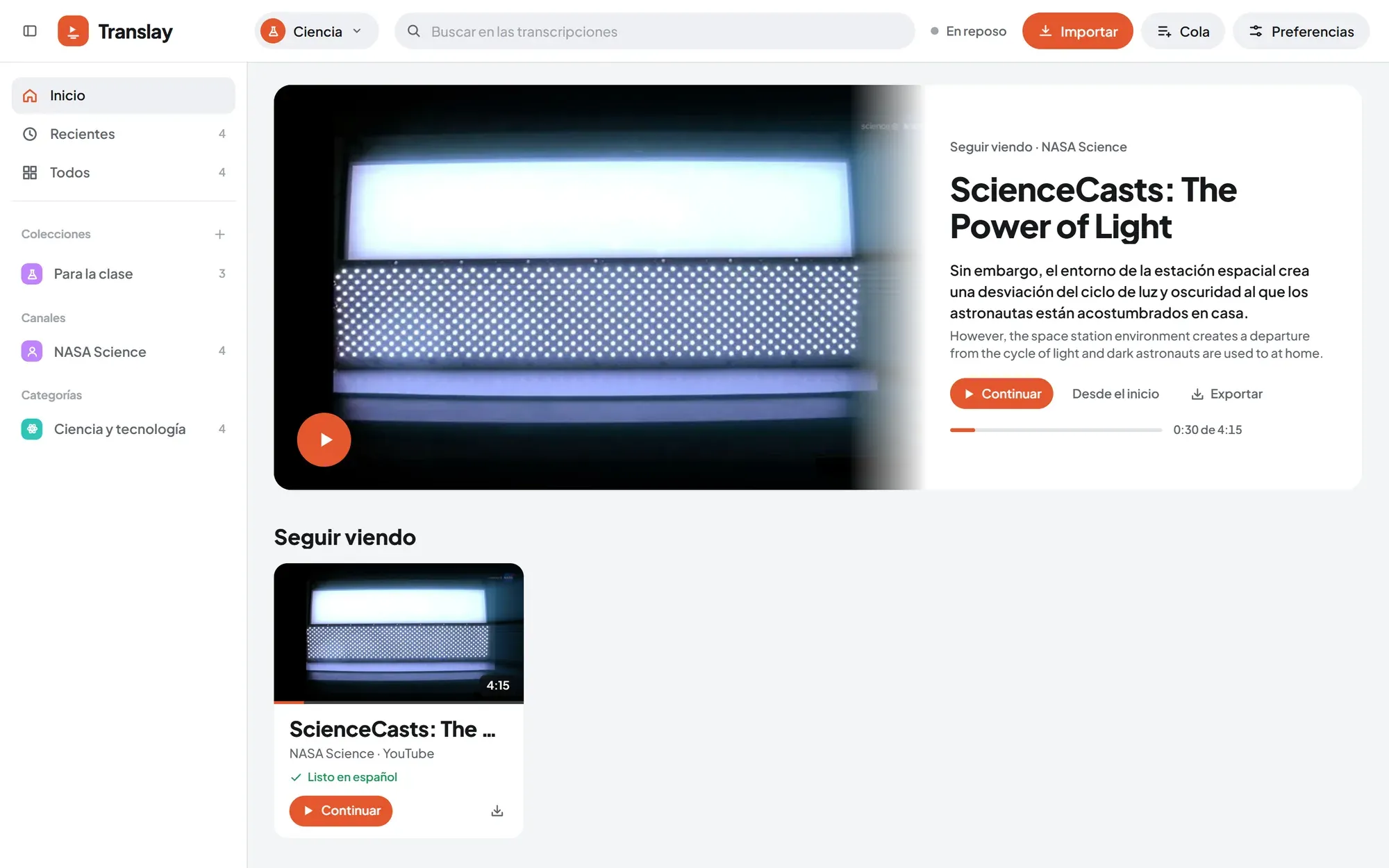
Section titled “Home page”Inicio (Home) shows at the top the last video you were watching, with the sentence where you stopped in Spanish and English, and the buttons «Continuar» (Continue), «Desde el inicio» (From the start) and «Exportar» (Export). If none is half-watched, it shows the most recently added one.
Below are the rows, each with its «Ver todo» (See all) when it has more than four videos:
- Seguir viendo (Continue watching): videos you started and haven’t finished, from the last one opened to the first.
- Recientes (Recent).
- Up to eight of your collections and playlists.
- The four channels with the most videos and the two categories with the most videos (only those with more than one).
With an empty library, the home page is replaced by «Traduce tu primer video» (Translate your first video): a field to paste a link, «Importar archivos» (Import files) and the option to drag a video onto the page.
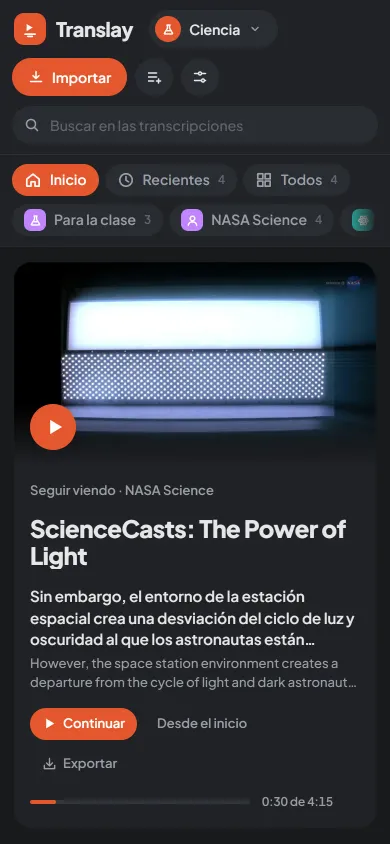
On a phone, the collections become a row of tabs at the top and the home page takes the full width. In light mode it looks like this:
Automatic collections
Section titled “Automatic collections”They are built from the videos themselves; they can’t be renamed or deleted.
| Collection | What it shows |
|---|---|
| Recientes | Videos already on the machine and what was just imported (even if it is still downloading), from the last opened or added to the first. What is pending in a playlist appears only in its playlist. |
| Todos (All) | Every video in the library, including those still to download, from the last added to the first. |
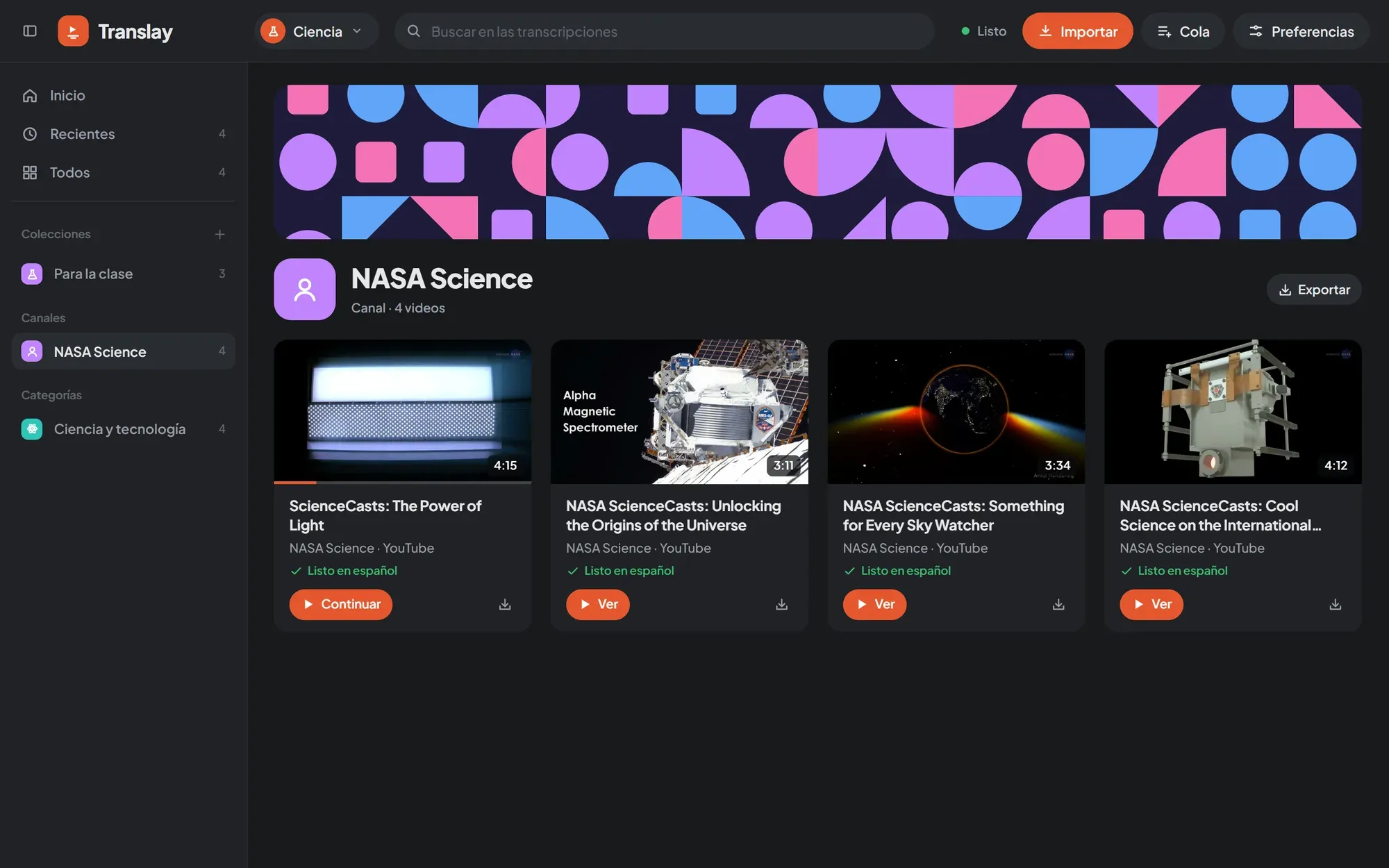
| Canales (Channels) | One per YouTube channel, with the channel’s real avatar and banner. They can be hidden in Preferencias › Importar y descargas › «Canales en la barra lateral» (Preferences › Import and downloads › “Channels in the sidebar”). |
| Categorías (Categories) | One per YouTube category, with its Spanish name (Educación, Ciencia y tecnología, Música…). |
Categories and channels are calculated from the videos in Recientes. The full list of categories is in vt/library.py.
Custom collections
Section titled “Custom collections”You create them with the + next to the «Colecciones» (Collections) heading in the sidebar, with «Nueva colección…» (New collection…) from the context menu, or from the player with «Guardar en…» (Save to…). The first time you open a video that is not in the library or in a playlist, the «Guardar en…» panel opens by itself so you can choose where to save it.
A video can be in several collections. To remove it from one, use the × on its card («Quitar de la colección», Remove from the collection) or the context menu. Deleting a collection does not delete its videos.
Playlists
Section titled “Playlists”An imported YouTube playlist is saved as a collection, with the order number on each card and the buttons «Reproducir» (Play) and «Abrir en YouTube» (Open on YouTube). Its videos enter the queue and are downloaded and processed in order. Importing the same playlist again updates it with its current order.
When you delete a playlist, downloaded videos stay in the library; those that were still to download leave the queue and the library. How to import them: Import.
Each card shows the thumbnail, the duration, the channel and what is left to do: «En cola · sin descargar» (Queued · not downloaded), «Descargando 40 % · 2,3 MB/s · quedan 0:12» (Downloading 40% · 2.3 MB/s · 0:12 left), «Procesando · 42 %» (Processing · 42%), «Descargado, sin traducir» (Downloaded, not translated) or «Listo en español» (Ready in Spanish). The ring over the thumbnail shows how much is translated and how much is dubbed; the thin bar at the bottom shows how far you have watched.
One click on the thumbnail or the title opens the video. The card’s buttons change depending on its state:
| Button | When it appears |
|---|---|
| «Ver» (Watch) or «Continuar» | Whenever it can be opened. On a YouTube video not yet downloaded it is «Ver ▾», with «Descargar sin abrir» (Download without opening). |
| «Priorizar» (Prioritize) | If it is waiting in the queue: moves it to the front. |
| «Procesar» (Process) | If it is not translated and not in the queue. |
| «Bajar video» (Download video) | If only the audio was downloaded. |
| Export | Always (the download icon). See Export. |
The library draws cards 200 at a time; «Mostrar más» (Show more) adds the next ones.
Banners and patterns
Section titled “Banners and patterns”Collections, playlists and categories have a banner with a pattern of geometric shapes (circles, quarter circles, triangles and squares) and a badge with their icon. The pattern comes from the name, so it is always the same. «Otro patrón» (Another pattern), on the banner or in the context menu, changes it; this choice is stored in the browser, not on the server. Channels use their YouTube banner and don’t have «Otro patrón».
Libraries also have a pattern, but theirs is stored on the server: see Libraries.
Multiple selection
Section titled “Multiple selection”Each card has a checkbox. With at least one video selected, the header changes to «N seleccionados» (N selected) with these actions:
- «Abrir» (Open): plays them in order; they stay in the «Siguientes» (Up next) tab.
- «Procesar»: sends them to the queue to be translated and dubbed.
- «Exportar».
- «Bajar video (N)»: of the selected ones that only have the audio.
- «Mover a…» (Move to…): to another library (appears if you have more than one).
- «Eliminar» (Delete) and «Quitar selección» (Clear selection).
Rename
Section titled “Rename”«Renombrar…» (Rename…) in the context menu of a card or of the video you’re watching gives a video your own name, for example to turn a file called 21_10 into «Clase de estadística». The name changes at once everywhere it appears, and it stays: downloading the video again, opening it or reading its title from YouTube doesn’t overwrite it.
Delete
Section titled “Delete”«Eliminar» (in the selection, or «Eliminar video» in the context menu) moves the video to the trash with its translation, its voices and what was downloaded: the notice includes Deshacer (Undo) and it can be restored for 30 days. Emptying the whole library is in the library’s «⋯» menu and asks you to type its name.
Context menu
Section titled “Context menu”Right-clicking opens a menu that depends on where you click:
| Where | What it offers |
|---|---|
| Video card | Ver or Continuar, Ver desde el inicio, Priorizar, Traducir y doblar (or Transcribir), Idioma del video, Renombrar…, Guardar en, Mover a, Exportar…, Abrir en YouTube, Copiar enlace, Seleccionar, Eliminar video. |
| Collection (sidebar, home page row or banner) | Abrir, Reproducir, Importar aquí…, Exportar todo…, Otro patrón, Renombrar…, Eliminar. |
| Queue job | Ver, Priorizar, Traducir y doblar, Copiar enlace, Quitar de la cola. |
| Transcript sentence | Ir a este momento, Copiar en español or en inglés, Copiar enlace a este momento, Comentar. |
| Video | Reproducir or Pausar, Escuchar el original or en español, Pantalla completa, Mostrar or Ocultar la transcripción, Renombrar…, Guardar en…, Exportar…, Copiar enlace a este momento. |
| Empty space | Importar enlaces…, Importar archivos…, Nueva colección…, Inicio, Cola, Preferencias, contraer la barra lateral, Recargar. |
In text fields, on a link or with selected text, the browser’s menu is kept. The code is in web/js/contextmenu.js.
Sidebar
Section titled “Sidebar”At the top, Inicio, Recientes and Todos stay fixed; below, with their own scrolling, Colecciones, Playlists, Canales and Categorías, each with its number of videos. The button next to the logo collapses it into a column of icons (in the player, that same button shows or hides the transcript). Your choice is remembered in the browser.
The address remembers where you are
Section titled “The address remembers where you are”The page address changes with each screen, so reloading leaves you in the same place and the browser’s back and forward buttons work:
| Address | Screen |
|---|---|
#/ |
Home |
#/c/<colección> |
A collection, playlist, channel or category |
#/video/<id> |
The player with that video |
#/cola |
The Cola (Queue) screen |
#/preferencias/<sección> |
A Preferencias section |
While data arrives after a reload, you see the page’s silhouette. The code is in web/js/route.js.